 Canary
Set up broker reporting
Updated: 2026-10-18 21:55 CEST
Canary needs one Activity Flex Query from Interactive Brokers. This is the broker-reporting foundation for reconciliation, statement-derived equity, Canary Edge, and FX contribution. A working Gateway connection does not create this report for you.
The reliable setup is intentionally broad: add the eight required sections below and select all fields in each one. Canary ignores fields it does not use. This is easier to follow and more resilient to IBKR label changes than asking you to find individual XML attributes in the Portal.
This setup is read-only. It lets Canary retrieve statements; it grants no order or account-management authority.
Before you start
You need:
- access to the IBKR Client Portal for the account Canary uses;
- the exact account selected when your login manages more than one account;
- a text editor and a terminal on the machine running Canary.
Keep the Flex token private. Do not paste it into a shell command, issue, support message, screenshot, or Canary's TOML file.
1. Open Activity Flex Queries
In Client Portal, choose Performance & Reports → Flex Queries. The alternate path is Menu → Reporting → Flex Queries.
If an Account Selector opens, select only the account Canary is configured to use. IBKR shows a saved query again only when the same account selection is active. For advisor or linked-account structures, the Flex Web Service token is normally visible from the master account even when the query itself is scoped to one subaccount.
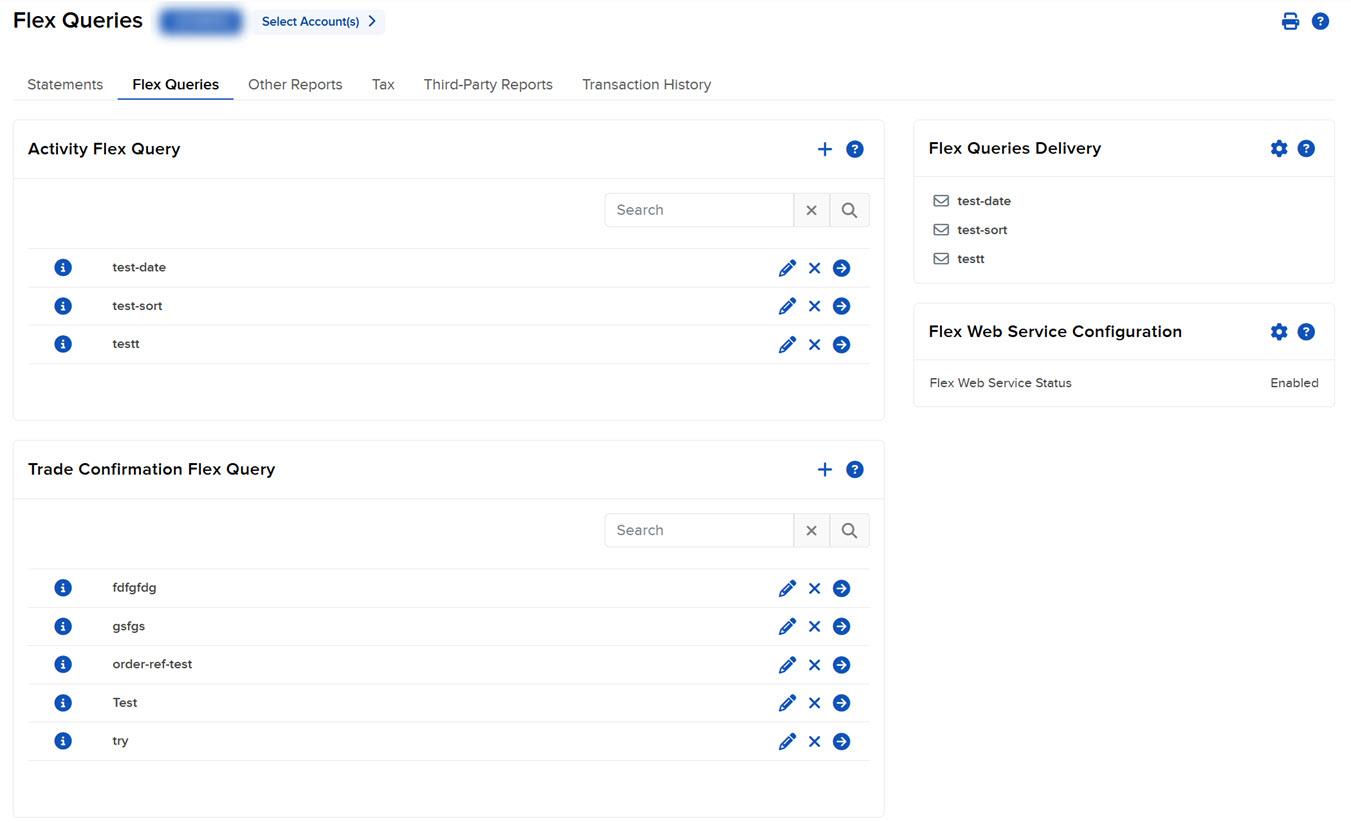
IBKR's Flex Queries page. Screenshot: Interactive Brokers Client Portal User Guide.
Under Activity Flex Query, click the + button. Do not use Trade Confirmation Flex Query: it does not contain the statement sections Canary needs.
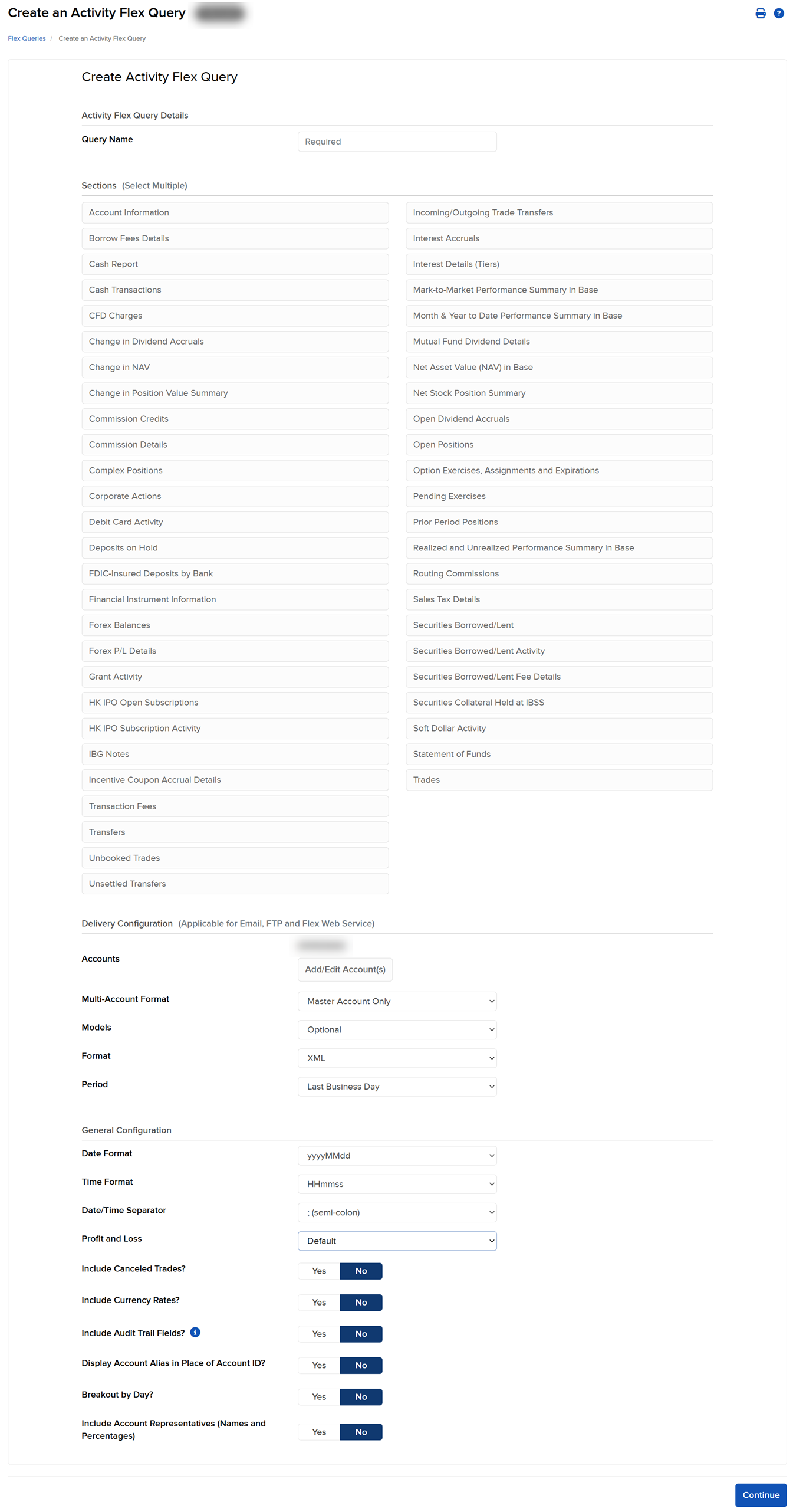
The Activity Flex Query editor. Screenshot: Interactive Brokers Client Portal User Guide.
Give the query a recognizable name, such as Canary Reporting.
If your Portal shows Configure with AI, IBKR also supports an interactive draft workflow. A useful starting prompt is:
Create an XML Activity Flex Query for one selected account and the last 365 calendar days, with no symbol or model filters. Include all fields in Trades at Executions detail, Financial Instrument Information, Open Positions at Summary detail, Options/Exercises/Assignments/Expirations, Corporate Actions, Transfers, Cash Transactions, and NAV Summary in Base.
Use Edit Manually to verify every section and field below before saving. IBKR says AI-generated Flex output may be incomplete or inaccurate, and delivery configuration still belongs on the ordinary Flex Queries page. This path reduces clicking; it does not replace Canary's deterministic validation.
2. Add the eight required reporting sections
Add each section below. When a section opens its field picker, choose Select All or check every available field, then save the section.
| Section in IBKR Client Portal | Required detail |
|---|---|
| Trades | Executions |
| Financial Instrument Information | All fields |
| Open Positions | Summary |
| Options, Exercises, Assignments and Expirations | All fields |
| Corporate Actions | All fields |
| Transfers (ACATS, Internal) | All fields |
| Cash Transactions | All fields |
| Net Asset Value (NAV) Summary in Base | All fields |
Leave Filters empty. A symbol filter would silently exclude account activity Canary must reconcile. Selecting all fields is safe: Canary validates the attributes it needs and ignores additional XML attributes.
Some account and Client Portal variants also show Currency Conversion Rate. If it is available, add it and select all fields; it improves dated FX evidence for non-base-currency Edge horizons. It is not required because IBKR does not offer it in every live section picker. Forex Balances and Forex P/L Details are different reports and are not substitutes. Canary will leave an affected non-base-currency result unscored when the required broker FX evidence is unavailable.
The exact XML attribute names are generated from the parser itself in the Canary reporting Flex query reference. Use that page when diagnosing a named missing requirement. Do not copy the list into a separate checklist: the generated reference is the field authority.
Optional stock lending
In the Activity Flex query editor, select Securities Borrowed/Lent and Securities Borrowed/Lent Fee Details, with all fields. Securities Borrowed/Lent Activity is optional audit context. Save the field dialog, then use Continue to review and finish saving the whole query.
These Portal labels were verified directly on 2 October 2026. IBKR's reporting guide uses Stock Yield Enhancement Program headings for the corresponding loan balances and earned fee details. The fee editor exposes Net Lend Fee and Net Lend Fee Rate %.
Canary reads managed stock loans and customer net fees from SLBOpenContracts
and SLBFees. These sections are optional: missing lending evidence does not
block reconciliation or Edge. Missing sections mean unavailable income; a
present, complete empty fee section can establish zero. A conversion to account
base currency also needs a matching statement base-currency identity.
Participation remains a setting at IBKR. Canary adds no enrollment modes. See lending observations in Edge. Availability and exact fields still need confirmation for your account/entity; synthetic tests do not establish broker commissioning.
3. Configure delivery
Under Delivery Configuration:
- Accounts: use Add/Edit Accounts and choose the one Canary account. Do not use a consolidated multi-account report.
- Models: leave models unrestricted unless the whole account genuinely uses one model.
- Format: XML.
- Period: Last 365 Calendar Days. Canary can use IBKR's supported date override for later incremental and replay fetches, but this default also makes a manual test useful.
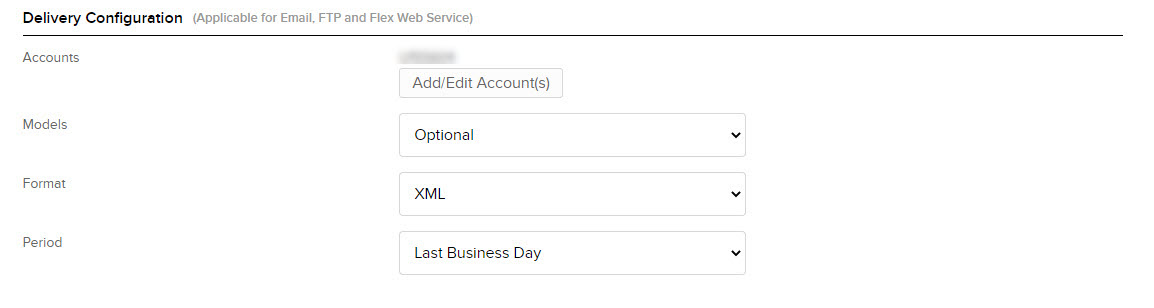
Delivery Configuration. Screenshot: Interactive Brokers Client Portal User Guide.
Under General Configuration, choose a machine-readable date/time format:
yyyyMMdd, 24-hour time, and ; as the date/time separator. Keep the real
Account ID in the XML rather than substituting an account alias.
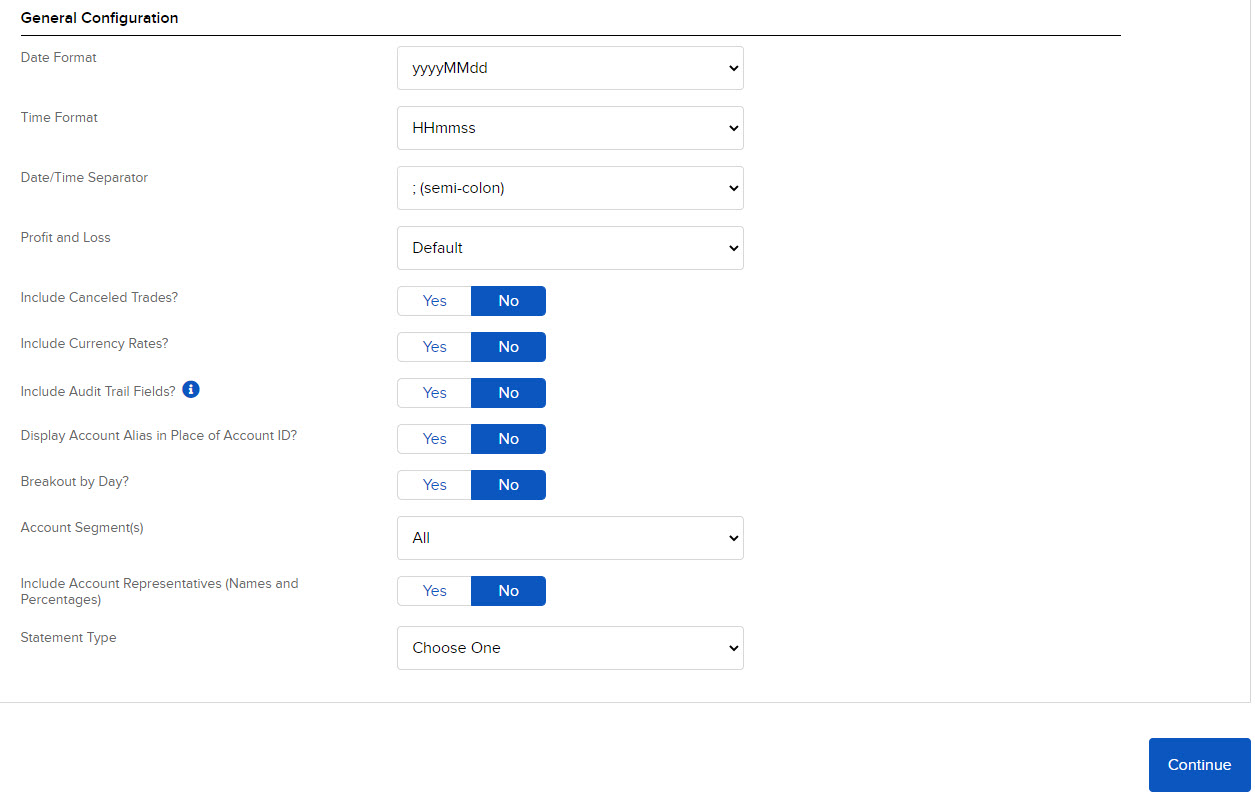
General Configuration. Screenshot: Interactive Brokers Client Portal User Guide.
Click Continue, review the query, then click Create. Back on the Flex Queries page, click the query's information icon and record its Query ID.
4. Enable the Flex Web Service
Open Flex Web Service Configuration on the Flex Queries page. Enable Flex Web Service Status and save it. Generate a token with an expiry appropriate for a long-running local service. An IP restriction is optional, but if you use one it must allow the machine running Canary.
Generating a new token invalidates the current token. Do not rotate it while a working Canary installation still depends on the old value unless you are ready to update Canary immediately.
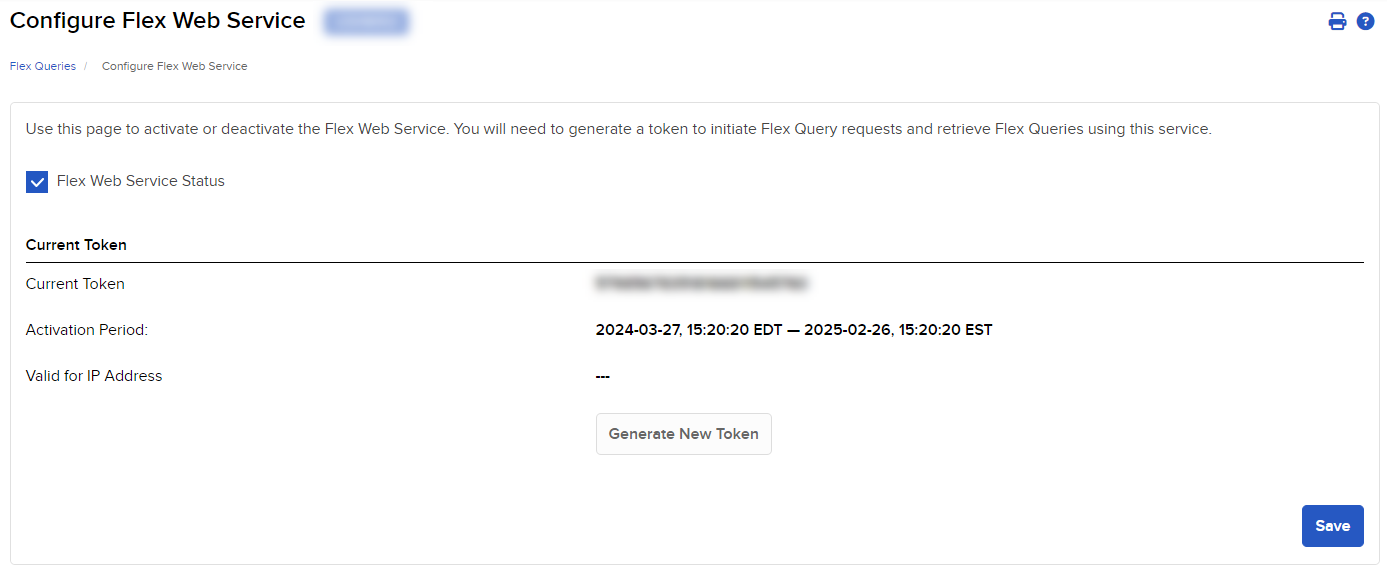
Flex Web Service Configuration. Screenshot: Interactive Brokers Portal User Guide. Token values in documentation are illustrative; never share yours.
5. Validate and activate it with Canary
Run the interactive setup wizard on the machine that runs Canary:
canary setup reporting
The wizard prints the canonical checklist, asks for the Query ID, and reads the
token with terminal echo disabled. Paste with your terminal's normal Paste
command—Command-V on macOS—then press Return. No characters or bullets
appear while you paste. Canary confirms Token received only after Return; it
never prints the value. It writes the token to a private 0600 file, asks the
daemon to fetch and validate the candidate report, and changes the active
configuration only after that check succeeds. Candidate XML is parsed in
memory and discarded: it is not retained, projected, logged, or returned by
the local API.
A date range with no trades, transfers, or corporate actions cannot prove the
fields selected for those sections. The wizard reports absent when a
container was not returned, empty when the container was returned with no
rows, and missing only when a real row proves a selected field is absent.
A present empty section is accepted automatically as zero reported activity;
it does not delay reporting readiness or require a confirmation. Fields are
validated when records arrive. For absent sections, the wizard gives the Portal
section, required detail level, and Select All repair, then asks before
accepting that uncertainty. It refuses activation when a non-empty section
proves that a named field is missing.
canary setup reporting --accept-unproved skips the additional confirmation
for absent sections. The wizard still requires an interactive terminal and
prompts for the Query ID and hidden token. It never accepts missing fields
proved by returned rows. Use the flag only after comparing the Portal definition
with the generated field reference. For provisioning without running the wizard,
use the manual configuration below.
On success, Canary updates the [flex] settings atomically, keeps one private
local config backup for rollback, restarts the daemon, and prints the shared
reporting state. If another query already works, this is a blue/green rotation:
the old Query ID and token remain active until the candidate passes validation.
After activation, Canary gives the replacement Query ID its own opaque evidence
generation. Old XML remains available for audit but cannot make the replacement
look complete or feed its Recon and Edge results. XML retained before query
generation tags existed is also preserved but must be refetched by the active
query before Canary treats it as current evidence.
Canary also removes superseded flex-token-* files from the config directory after a successful promotion, retaining only the active token and the one token referenced by the rollback config. A relative CANARY_CONFIG is resolved to an absolute path before the token is created or the daemon is restarted.
Why Canary cannot create the query for you
IBKR's documented Flex Web Service exposes two operations: trigger a report for a saved Query ID and retrieve that generated report. Query definition remains an authenticated Portal workflow. The classic editor and Configure with AI both end in an explicit preview/save step; neither is documented as query-definition CRUD that Canary can call. Canary therefore verifies everything the returned XML can prove, but it never replays Portal mutations or claims an undocumented creation API exists. See IBKR's Flex API reference, classic Activity Flex workflow, and Configure Flex with AI guide.
Manual configuration fallback
If you need to configure an installation that cannot run the interactive
wizard, store the token without shell-history exposure. The commands below
work in Bash and Zsh and prompt silently. Cancelled or empty input leaves an
existing token unchanged. A successful read replaces it atomically. Your token is read into memory, written to a file with mode
0600, then removed from the shell variable. The token itself never appears in
the command line or history.
(
  set -eu
  umask 077
  mkdir -p "$HOME/.config/ibkr"
  chmod 700 "$HOME/.config/ibkr"
  printf 'Paste Flex token: '
  IFS= read -rs flex_token || { printf '\nToken unchanged: input cancelled.\n' >&2; exit 1; }
  printf '\n'
  case "$flex_token" in
    *[![:space:]]*) ;;
    *) printf 'Token unchanged: empty input.\n' >&2; exit 1 ;;
  esac
  token_tmp=$(mktemp "$HOME/.config/ibkr/flex-token.XXXXXX")
  trap 'rm -f "$token_tmp"; unset flex_token' EXIT
  trap 'exit 1' HUP INT TERM
  printf '%s\n' "$flex_token" > "$token_tmp"
  unset flex_token
  mv -f "$token_tmp" "$HOME/.config/ibkr/flex-token"
)
Open the configuration file selected by CANARY_CONFIG, when set. Otherwise
use ${XDG_CONFIG_HOME:-$HOME/.config}/ibkr/config.toml. A relative
CANARY_CONFIG is relative to the directory where you launch Canary. Add:
[flex]
enabled = true
query_id = "YOUR_QUERY_ID"
token_path = "~/.config/ibkr/flex-token"
The Query ID selects a saved report. The token authorizes statement retrieval.
Only the token belongs in the protected token file. The manual token file above
intentionally stays at ~/.config/ibkr/flex-token, even when the configuration
file uses another directory; token_path points to it.
6. Check reporting, Recon, and Edge
canary restart
canary reporting status
canary recon show
canary edge
The restart loads manually edited files. The wizard performs it for you unless
you passed --no-restart. Then reporting status separates local
credential-file problems from broker and report evidence. Use these states:
| Reporting state | Meaning |
|---|---|
configured |
Local setup is sound, but one or more required sections were not returned. |
backfilling |
Canary is waiting for its first usable report or building the requested history. Temporary broker reasons are retried automatically. |
current |
Fresh broker evidence satisfies every requirement that the returned XML can prove. |
action_required |
Canary proved a local credential problem, a returned row is missing a named field, or IBKR returned a response that needs operator attention. |
unavailable |
Canary cannot read its local reporting authority. |
canary reporting status --json reports local readiness, broker reachability,
freshness, the reporting-manifest version, an account-free schema fingerprint,
named missing requirements, and explicit absent or empty sections. It never returns the token,
Query ID, account ID, statement filename, holdings, balances, or raw XML.
Temporary report_not_ready, service_busy, rate_limited, or
network_unavailable reasons are retried without changing your query.
Credential reasons such as token_expired, token_invalid, query_invalid,
service_inactive, or ip_restricted need a configuration correction.
Canary asks Flex for a range ending on the latest completed New York reporting
date, never the still-open reporting date. IBKR code 1003 means no statement
is available for that completed date. Canary retries it conservatively; if it
persists after the next statement publication, review the query's account
selection and availability rather than regenerating the token blindly.
A scheduled retry refreshes the current report; it is not a promise that an
absent section will appear. If matching activity exists inside the retained
coverage, edit the saved query, choose the named detail level and Select All,
then save. Canary validates the next report automatically; run
canary setup reporting only if you want an immediate candidate check.
IBKR may also return numeric statuses not present in its published Flex error
table. Canary exposes only the four-digit code. For example, code 1025 is
currently undocumented: review the Flex Web Service and query configuration,
then contact IBKR if it persists. Canary does not guess what undocumented
broker text means.
Recon should eventually report an active/current statement source. Canary Edge
uses the same report and can remain backfilling while it requests its initial
365-day evidence window. The four report chunks are paced one minute apart, then exact-contract daily bars are collected sequentially, so the first decision review normally takes several minutes after a healthy setup; broker retry states expose when Canary will try again. current means the consumer has fresh, validated
broker evidence. action_required means Canary proved a credential or report
definition problem rather than merely waiting for IBKR.
insufficient_evidence is an Edge state, not a Reporting state. It means account-level evidence may be usable but the completed one-year report did not return a Trades section. Edge is not waiting for another copy of that same history. If the account traded during the covered dates, check that the saved Portal query includes Trades at execution detail; if it did not, there are no decisions to score. This correction uses the one-time reporting setup only—there are no Edge parameters or debug exports to maintain. If Trades is present and explicitly empty, Edge instead keeps a current zero-decision result with a plain explanation.
An empty section is not proof that every field was selected. Canary keeps its field choices unproved until a real row arrives. Do not manufacture a trade, transfer, or corporate action just to populate it.
See the fills you enter by hand
The execution cost report (canary reporting costs) and the decision
scorecard measure the fills IBKR reports to Canary's API client, and TWS
reports fills entered in TWS or by other API clients only to its master
client. To see them, set Global Configuration → API → Settings → Master API
client ID in TWS to Canary's client ID (15 unless you pinned another);
canary status then shows an Executions row reading all clients once the
first such fill has been seen, and other-client fills not yet observed until
then. An unproven row does not establish that the TWS setting is wrong.
Fix an existing incomplete query safely
You may edit the saved query in place: add the missing section or fields, save,
and leave its Query ID configured. When the corrected report changes the
observed schema fingerprint, Canary invalidates the old full-year validation
and rebuilds the 365-day SQLite projection automatically. Use
canary reporting status to follow it. If you prefer a blue/green change,
create a second query and run canary setup reporting; Canary keeps the
working query active until the candidate validates.
FX contribution
In Desk, open Portfolio → Performance → FX. Canary also serves the same
result through canary reporting fx and the read-only canary_reporting_fx
MCP tool. Day, WTD, MTD and YTD show the currency contribution to P&L in the
account's base currency, with daily bars and a completed reporting cutoff.
This is statement-based valuation attribution, not live intraday P&L or
realised currency tax-lot P&L.
FX contribution + other P&L = portfolio value change after external flows
The calculation includes currency cash, investments, accrued interest and reconciled lending balances. Its closing-value convention assigns the interaction between price changes and exchange rates to FX; there is no separate “Price × FX” line. A currency conversion can contribute even when the closing exchange rate is unchanged.
Extend the same query
Keep the eight sections above, with every field selected. For FX, also add Cash Report, Interest Accruals, and Conversion Rates, with all fields, daily totals, dates and currency. Confirm Open Positions is at Summary detail and Trades at Executions detail. If the account lends securities, also add Securities Borrowed/Lent and Securities Borrowed/Lent Activity with all fields: base-currency NAV alone cannot establish the native liability. Use the existing Query ID and credentials.
Canary acquires daily current-year reports and the opening boundary, reconciles their native balances to NAV, and resumes acquisition after restart. The existing Flex worker checks for newly completed days. After correcting a query, start or resume missing daily evidence with:
canary reporting fx --backfill
canary reporting fx --json
The MCP tool reads evidence; it cannot start backfill.
| Evidence state | What you see |
|---|---|
| Complete | Period contribution and daily values, with the reporting cutoff. |
| Partial | Known daily contributions and dated gaps; no period total. |
| Unavailable | The missing evidence and action needed; no invented zero. |
| No foreign exposure | A hint and completed cutoff; no chart. Gross exposure must be absent throughout the period. |
For the exact method and reconciliation checks, see the FX contribution guide.
Official IBKR references
- Create an Activity Flex Query
- Configure Flex with AI
- Flex Web Service API reference
- Activity Flex Query field reference
- Find the Query ID
- Enable the Flex Web Service and create a token
- Flex Web Service date overrides and error behavior
For the local settings themselves, see the configuration reference. If a configured report still does not advance, continue with Troubleshooting.